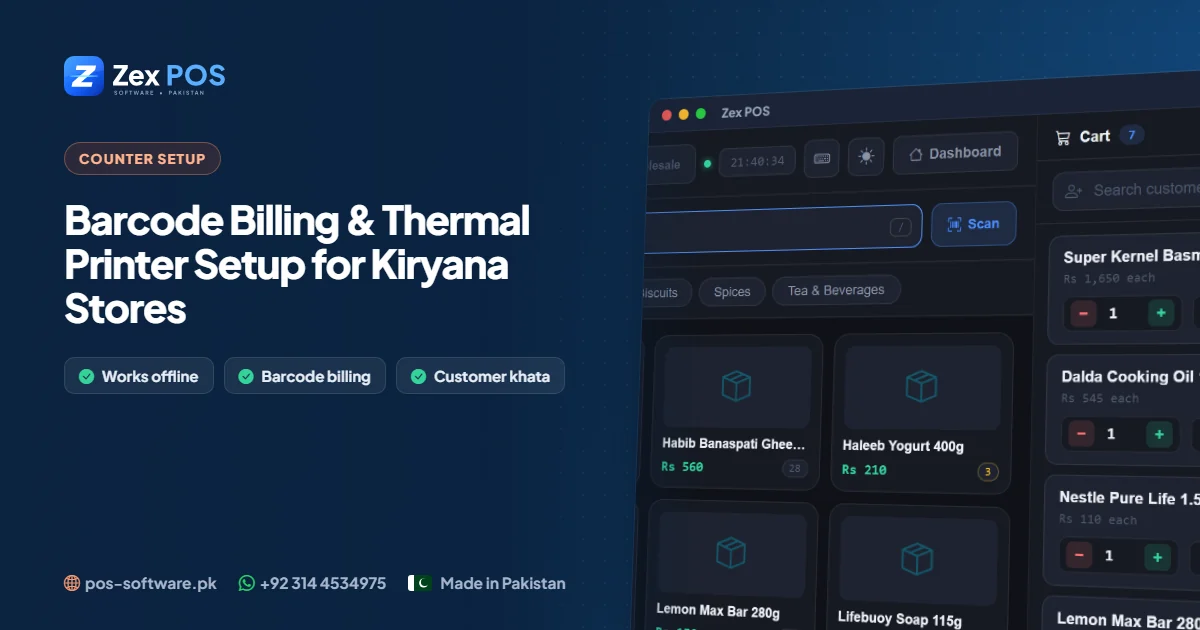
Most queues at a kiryana or general store counter are not caused by customers — they are caused by slow billing. Typing item names, adding totals on a calculator and writing a receipt by hand can easily take two or three minutes per customer. With a barcode scanner, a thermal printer and POS software, the same bill takes seconds.
What hardware you actually need
| Item | What to look for |
|---|---|
| Computer | Any Windows 10 or 11 PC or laptop with 4 GB RAM or more |
| Barcode scanner | A USB scanner that works as a keyboard ("plug and play") — no special driver needed |
| Receipt printer | An 80mm (or 58mm) USB thermal printer with its Windows driver installed |
| Optional | A cash drawer that connects to the printer, and a UPS for load-shedding |
You do not need expensive branded hardware. Locally available scanners and thermal printers work fine as long as Windows recognises them.
Step 1: Connect and test the barcode scanner
- Plug the scanner into a USB port. Windows treats it like a keyboard.
- Open Notepad and scan any product. The barcode number should appear and the cursor should move to a new line.
- If nothing appears, try another USB port. If digits appear but no new line, check the scanner's manual for the "Enter suffix" setting.
Step 2: Install and test the thermal printer
- Install the printer driver that came with it (or from the manufacturer's website).
- In Windows Printers & scanners, print a test page to confirm it works.
- Set the correct paper width (80mm or 58mm) in the printer preferences.
In Zex POS you can then print customer receipts on the thermal printer, or A4 invoices on a normal printer when a customer needs a full invoice.
Step 3: Add your products — fast
For packaged goods, the quickest method is to scan as you go: scan the barcode, type the name, sale price and cost price, and save. Start with your top 200–300 fast-moving items; the rest can be added as they come up at the counter.
For loose items — daal, sugar, rice by weight, vegetables — give each one a short code (for example DM for daal mash). The cashier types the code instead of searching a long list.
Step 4: Print barcode labels for items without barcodes
Bakery items, repacked goods and local products often have no barcode. Zex POS can print barcode labels, so you can label these items once and scan them like everything else. This removes the slowest part of billing: searching for unlabelled items.
Step 5: Train the cashier on the keyboard
- Scan packaged items, type short codes for loose items.
- Use the keyboard shortcuts so hands rarely leave the keyboard.
- Hold the bill when a customer goes back for one more item, serve the next person, then resume.
- Finish as cash, split payment or credit to the customer's khata.
Common problems and quick fixes
| Problem | Fix |
|---|---|
| Scanner reads but the item is "not found" | The item was never added — add it once and it will scan forever |
| Receipt text is cut off | Paper width in printer preferences doesn't match the roll (80mm vs 58mm) |
| Faded receipts | Thermal paper is old or low quality — replace the roll |
| Two products share a barcode | Use short codes for one of them, or print your own label |
The result
Once the counter is set up, a typical basket of 8–10 items is billed in well under a minute, every sale updates stock, and the day-end report matches the cash drawer. For the bigger picture, read our guide to choosing POS software for a mart or kiryana store.
Download the free 10-day trial of Zex POS or ask us on WhatsApp — we'll help you get your counter running.
Waqas Ali
Waqas ALi
My name is Waqas ali im currently working as software developer in different Field